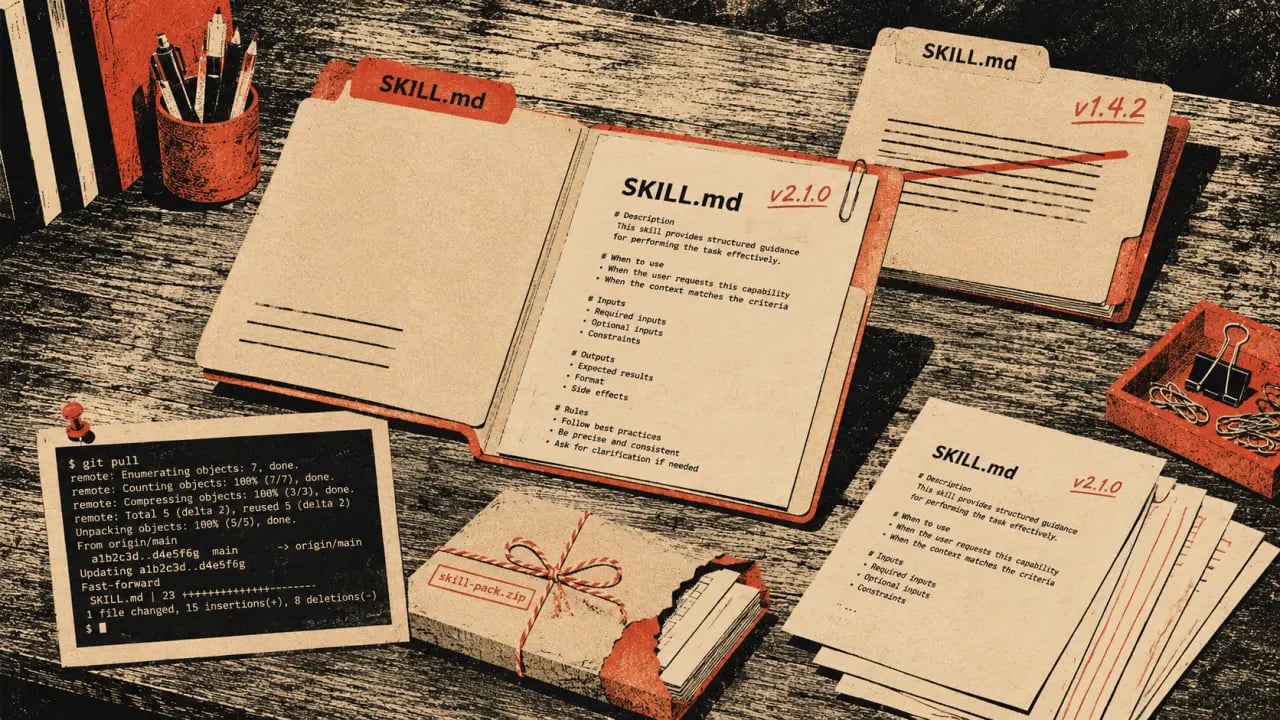
Skills improve over time. Creators fix bugs, add features, and update instructions based on feedback. Here's how to keep your skills current to ensure optimal performance and accuracy in your Claude Code environment.
Why Updating Skills Matters
Claude Code skills are like living software components; they evolve to become smarter, more efficient, and aligned with the latest AI capabilities. Updating skills not only fixes bugs but can introduce new functionalities, improve response quality, and keep your workflows smooth. Neglecting updates can lead to outdated or broken skills that no longer meet your needs.Quick Summary: How to Update Claude Code Skills
If you’ve acquired skills via the Agensi marketplace, updates are provided free and easy to apply. For GitHub-based skills, pulling the latest changes from the repository keeps you current. If you manage skills manually, editing the SKILL.md file is your go-to method. After updating, always restart your Claude Code session to activate changes.Updating Marketplace Skills (Agensi)
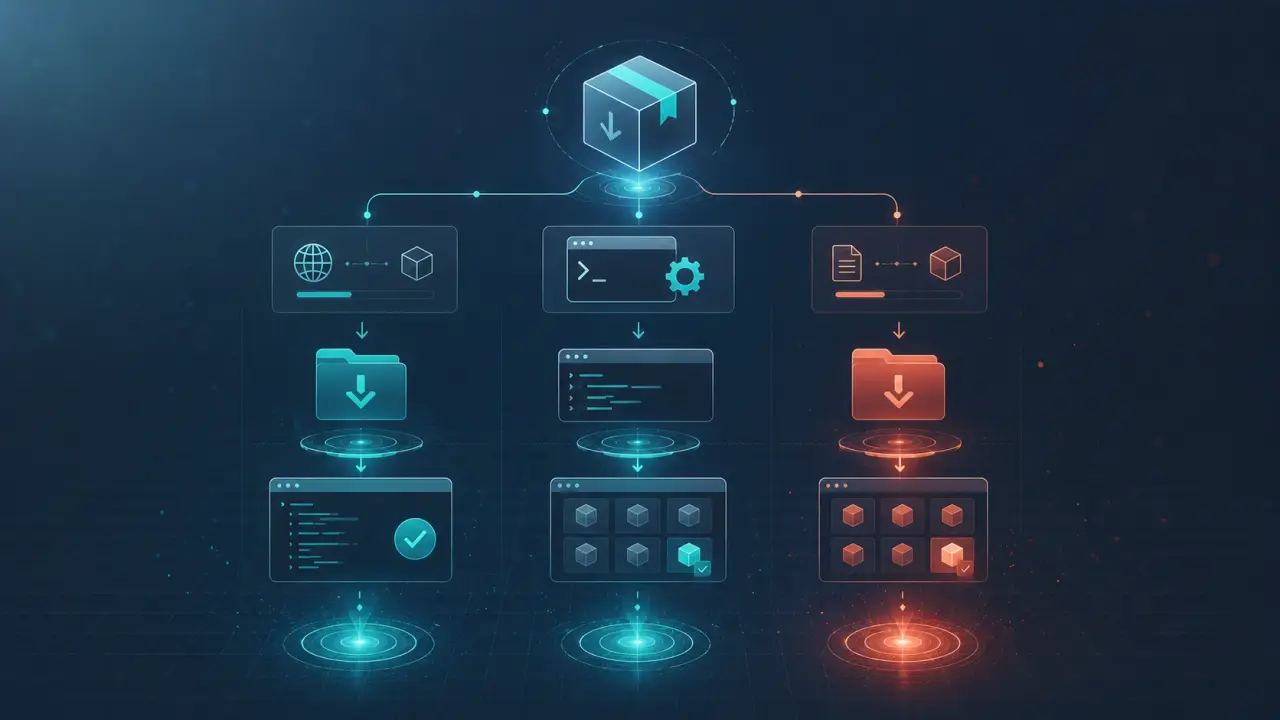
When a creator releases an update on Agensi, you’ll receive a notification in your purchase history indicating that an update is available. Here’s a practical step-by-step guide to updating marketplace skills:1. Log in to your Agensi account and go to your purchase history. 2. Locate the skill that has an update available. 3. Download the latest ZIP package of the skill. 4. Open your terminal or command prompt. 5. Remove the old version of the skill by running:
rm -rf ~/.claude/skills/skill-name/
6. Unzip the new skill files into your skills directory:
unzip skill-name-v2.zip -d ~/.claude/skills/
7. Once done, restart your Claude Code session to load the updated skill.
This process ensures that your skill files are replaced cleanly and you’re running the latest version.
Updating GitHub-Hosted Skills
Many creators host their Claude Code skills on GitHub, allowing for easy version control and collaboration. To update a skill cloned from GitHub, follow these steps:1. Navigate to your skills directory where the GitHub repo resides:
cd ~/.claude/skills/skill-name/
2. Pull the latest changes from the remote repository:
git pull origin main
3. If your branch is different (e.g., `master` or a custom branch), replace `main` accordingly. 4. After pulling the updates, restart your Claude Code session.
This method synchronizes your local skill files with the creator’s latest updates, including bug fixes, new features, or documentation changes.
Manual Skill Updates by Editing SKILL.md
If you manage your skills manually or develop your own, the SKILL.md file is the core of your skill definition, containing instructions, code snippets, and prompts. To update this file:1. Open the SKILL.md file in your preferred text editor. 2. Make the necessary changes — fix typos, update instructions, add new examples, or refine prompts. 3. Save the file and ensure it is located correctly within the skill folder. 4. Restart the Claude Code session to apply the changes.
Manual edits give you full control over skill customization but require careful testing to ensure the skill behaves as expected post-update.
Versioning Strategies for Skill Maintenance
Adopting a versioning strategy helps track changes and manage updates efficiently. Common approaches include:- Semantic Versioning (e.g., v1.0.0, v1.1.0, v2.0.0): Indicates major, minor, and patch updates. - Date-based Versioning (e.g., 2024-06-01): Useful for frequent updates.
Keep a CHANGELOG.md file alongside your skill files to document what changed in each version. This practice aids both creators and users in understanding updates and deciding when to upgrade.
When to Update Your Skills: Update Triggers
Not all updates require immediate action, but consider updating your skills when:- You receive an update notification via Agensi or GitHub. - You encounter bugs, errors, or unexpected behavior. - New features or optimizations are announced. - Compatibility updates are released to support new Claude Code versions.
Regularly reviewing your skills ensures you benefit from the latest improvements and avoid technical debt.
Best Practices for Skill Maintenance
To keep your Claude Code skills in top shape, apply these best practices:- Backup your existing skill folders before updating, especially if you’ve customized them. - Test updated skills in a controlled environment before deploying in critical workflows. - Document any custom changes you make to skills to avoid losing them during updates. - Subscribe to creator updates or follow their repositories to stay informed. - Automate updates where possible, using scripts or scheduled reminders.
These habits help maintain reliability and reduce downtime.
Real-World Example: Updating a Skill from Agensi
Suppose you purchased a skill called "EmailAutomation" from Agensi. You receive a notification that version 2.0 is available with enhanced email parsing and scheduling features. Here’s how you update:1. Download `EmailAutomation-v2.zip`. 2. Open terminal:
rm -rf ~/.claude/skills/EmailAutomation/
unzip EmailAutomation-v2.zip -d ~/.claude/skills/
3. Restart Claude Code.
4. Test the new features by running sample email commands.
This ensures you’re using the latest capabilities without manual configuration hassles.
Troubleshooting Update Issues
Sometimes updates may fail or cause unexpected behavior. Here are tips to troubleshoot:- Confirm file permissions are correct after unzipping. - Clear any cache or temporary files used by Claude Code. - Verify the skill folder name matches expected conventions. - Check for dependency changes noted in README or CHANGELOG. - Revert to a previous version if necessary by restoring backups.
If problems persist, contact the skill creator or community forums for support.
Conclusion
Keeping your Claude Code skills updated is essential to leverage continuous improvements, fix bugs, and enjoy new features. Whether you use the Agensi marketplace, GitHub repositories, or manual management, following structured update processes and best practices ensures your AI assistant works efficiently and effectively. Make skill maintenance a routine part of your Claude Code workflow to stay ahead and maximize productivity.Frequently Asked Questions
Are these prompts free? Yes — all PromptSpace prompts are free to copy and use. Browse our ChatGPT Prompts library for hundreds more.Do these work on the free tier? Most work on free tiers. Complex prompts may perform better on paid versions (ChatGPT Plus, Claude Pro) with larger context windows.
How do I get better AI results? Be specific: include your role, desired format, target audience, and any constraints. More context always improves output.
Can I modify these prompts for my use case? Absolutely — treat every prompt as a starting template. Customize the role, topic, tone, and format to match your needs.