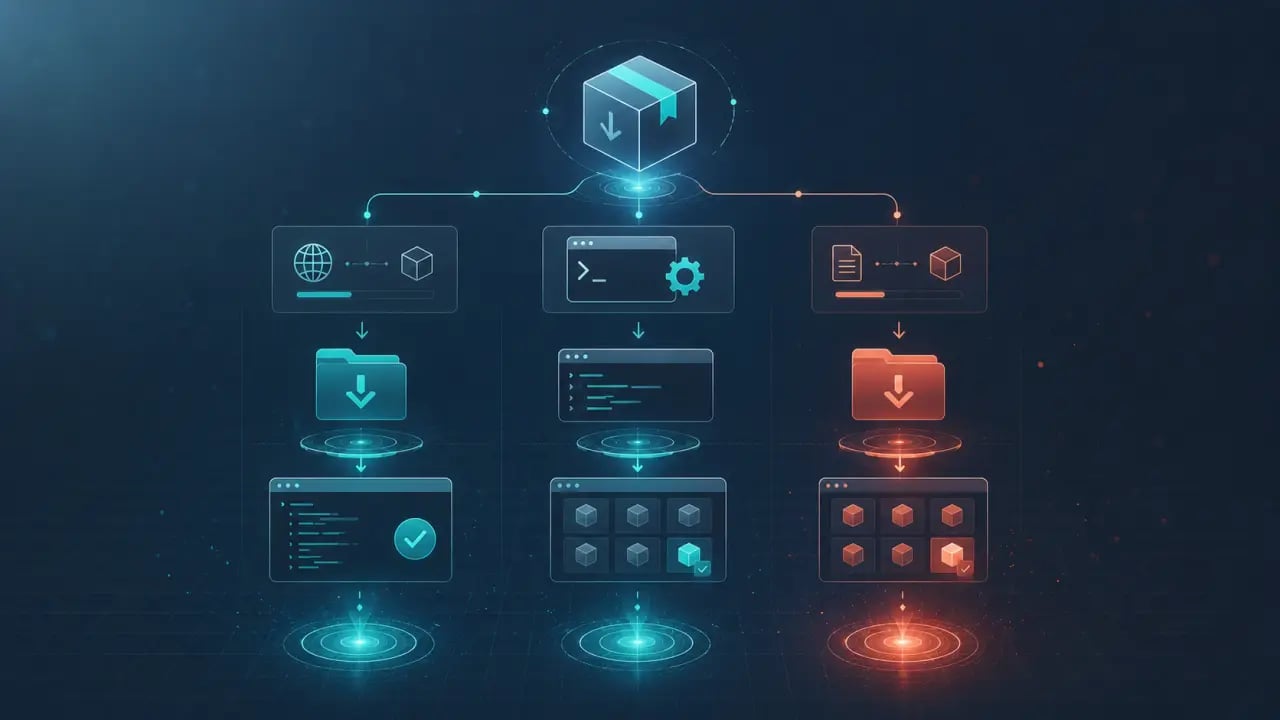
A skill is a set of instructions packaged as a SKILL.md file that an AI agent reads to learn a new workflow. > Quick Answer: The fastest way to install is the one-liner curl command: `mkdir -p ~/.claude/skills && curl -sL https://www.agensi.io/api/install/What's the fastest way to install a skill?
Use the one-liner curl install command. From any agensi.io skill page, copy the slug and run: ```bash mkdir -p ~/.claude/skills && curl -sL https://www.agensi.io/api/install/What do I need before installing skills?
Make sure Claude Code is installed and working. Open your terminal and run: ```bash claude --version ``` If you get a version number back, you're good. If not, install Claude Code first by following the instructions at claude.ai/install. Skills are stored in two places: - Personal skills go in `~/.claude/skills/` and are available across all your projects - Project skills go in `.claude/skills/` inside a specific repo and are shared with anyone who clones it Most of the time, you'll install to the personal directory unless you're setting up skills for a team. How do I install skills using the plugin browser?
Claude Code has a built-in plugin system that lets you browse, install, and manage skills without leaving your terminal. This is the fastest method if the skill you want is available as a plugin. Step 1. Start a Claude Code session in any project: ```bash claude ``` Step 2. Type `/plugin` and press Enter. This opens the plugin browser. Step 3. Navigate to the Discover tab. You'll see a list of available plugins from the default Anthropic marketplace. Step 4. Find the plugin you want and press Enter to install it. Claude will ask you to choose a scope: - User installs it for all your projects (`~/.claude/skills/`) - Project installs it for the current repo only (`.claude/skills/`) Step 5. That's it. The skill is now active. You can invoke it with `/skill-name` or let Claude load it automatically when it's relevant. Adding community marketplaces
The default marketplace only has Anthropic's official plugins. To access community skills, add a third-party marketplace: ```bash /plugin marketplace add author/repository ``` For example, to add a popular community skills collection: ```bash /plugin marketplace add alirezarezvani/claude-skills ``` After adding a marketplace, its plugins show up in the Discover tab alongside the official ones. How do I install skills from GitHub?
If a skill isn't available as a plugin, or if you prefer to manage files yourself, you can install skills by copying them into the right directory. This works for skills downloaded as zip files, cloned from GitHub, or created by hand. Installing from a zip file
Step 1. Download the skill zip file. On Agensi, click the download button on any skill page. Step 2. Unzip it into your skills directory: ```bash Personal install (all projects)
unzip code-reviewer.zip -d ~/.claude/skills/ Project install (current repo only)
unzip code-reviewer.zip -d .claude/skills/ ``` Step 3. Verify the folder structure looks right: ```bash ls ~/.claude/skills/code-reviewer/ ``` You should see at least a SKILL.md file. Some skills also include `scripts/`, `references/`, or `assets/` folders. Step 4. Start a new Claude Code session. Claude will automatically detect the new skill. Installing from GitHub
Step 1. Clone the repository: ```bash git clone https://github.com/author/skill-name.git ``` Step 2. Copy the skill folder (not the whole repo) to your skills directory: ```bash cp -r skill-name ~/.claude/skills/skill-name ``` If the repo contains multiple skills in subdirectories, copy just the one you want: ```bash cp -r repo-name/skills/code-reviewer ~/.claude/skills/code-reviewer ``` Step 3. Start a new session and the skill will be available. Verifying an install
After installing any skill, you can check that Claude recognizes it. Start a session and type: ```bash /skill-name ``` If the skill loads, you'll see Claude acknowledge it and follow the skill's instructions. If nothing happens, double check that the SKILL.md file is in the right location and that the folder is directly inside `~/.claude/skills/` (not nested an extra level deep). How do I install skills from Agensi?
Agensi is a marketplace for curated, security-reviewed SKILL.md skills. Every skill goes through an automated 8-point security scan before it goes live, so you know what you're installing has been inspected. Step 1. Browse skills at agensi.io/skills. Filter by category, price, or popularity. Step 2. Click on a skill to see its detail page. Check the description, tags, and security scan results. Step 3. Click Download (for free skills) or Buy (for paid skills). You'll get a zip file. Step 4. Unzip into your Claude Code skills directory: ```bash unzip skill-name.zip -d ~/.claude/skills/ ``` Step 5. Start a new Claude Code session. Done. Agensi skills work with Claude Code out of the box, but most are also compatible with Codex CLI, Cursor, Gemini CLI, and other agents that support the SKILL.md format. Check the compatibility info on each skill's page. How do I manage my installed skills?
Over time you'll accumulate skills. Here are a few useful things to know: List all installed skills: ```bash ls ~/.claude/skills/ ``` Remove a skill: Just delete its folder. ```bash rm -rf ~/.claude/skills/skill-name ``` Update a skill: Replace the folder with the new version. If you bought it on Agensi, download the latest version from your dashboard. For GitHub skills, pull the latest changes. Disable a skill temporarily: Rename the folder to something Claude won't recognize, like adding an underscore prefix: ```bash mv ~/.claude/skills/code-reviewer ~/.claude/skills/_code-reviewer ``` Rename it back to re-enable. Which skills should I install first?
If you're just getting started, here are a few skills that most developers find useful right away: - git-commit-writer writes conventional commit messages by analyzing your staged changes - code-reviewer reviews your code for bugs, security issues, and best practices - pr-description-writer generates clear pull request descriptions from your branch diff - env-doctor diagnoses why your project won't start Browse more on the Agensi marketplace or check out the complete guide to SKILL.md if you want to understand how skills work under the hood. Related Articles
- Where Are Claude Skills Stored? File Paths and Locations - What Is SKILL.md? The Complete Beginner's Guide - 10 Best Claude Code Skills in 2026 - What Is the Model Context Protocol (MCP)? - How MCP and SKILL.md Work Together What are the quick CLI install commands?
For terminal-first installs, three patterns cover most cases: ```bash Direct from Agensi (copy ZIP URL from the skill page)
curl -L From GitHub
git clone https://github.com/author/skill-name.git ~/.claude/skills/skill-name Batch from a directory of zips
for zip in ~/downloads/skills/*.zip; do unzip "$zip" -d ~/.claude/skills/; done ``` How do I install skills on other AI agents?
The same skill folder works in OpenClaw and Codex CLI. Symlink for a single source of truth: ```bash ln -s ~/.claude/skills ~/.openclaw/skills ln -s ~/.claude/skills ~/.codex/skills ``` How do I list and remove installed skills?
```bash ls ~/.claude/skills/ # list installed rm -rf ~/.claude/skills/skill-name # remove mv ~/.claude/skills/foo ~/.claude/skills/_foo # disable (rename out) tar -czf ~/skills-backup.tar.gz ~/.claude/skills/ # backup ``` Related Reading
Now that you know how to install skills, these posts cover what to install next and how to get more out of them:
- Best Claude Code Skills to Install in 2026 - What Is SKILL.md? A Complete Guide to AI Agent Skills - SKILL.md vs .cursorrules vs AGENTS.md Explained - Best Code Review Skills for Claude Code
Frequently Asked Questions
Do I need to restart Claude Code after installing a skill? Yes — a full restart is needed so Claude Code scans the skills directory and loads the SKILL.md file. Running `/skills` after restart confirms it loaded. If the skill doesn't appear, double-check the directory path: personal skills go in `~/.claude/skills/What happens if a skill has a typo in SKILL.md? Claude Code skips malformed skills silently. If a skill doesn't activate when it should, open its SKILL.md, check that the YAML frontmatter is valid (proper `---` delimiters, no tab characters), and restart.
Can I install the same skill at both personal and project scope? Yes, and project scope takes precedence. This lets you override a personal skill with a project-specific version. The project-scoped `.claude/skills/` folder is usually committed to the repo so teammates get the same skills automatically.
Are agensi.io skills safe to install? Each skill is a plain text SKILL.md file — there's no executable code, no install scripts. The agent reads the instructions and follows them using tools you already have. Review the file before installing if you're cautious; it's plain markdown.
Frequently Asked Questions
Are these prompts free? Yes — all PromptSpace prompts are free to copy and use. Browse our ChatGPT Prompts library for hundreds more.Do these work on the free tier? Most work on free tiers. Complex prompts may perform better on paid versions (ChatGPT Plus, Claude Pro) with larger context windows.
How do I get better AI results? Be specific: include your role, desired format, target audience, and any constraints. More context always improves output.
Can I modify these prompts for my use case? Absolutely — treat every prompt as a starting template. Customize the role, topic, tone, and format to match your needs.