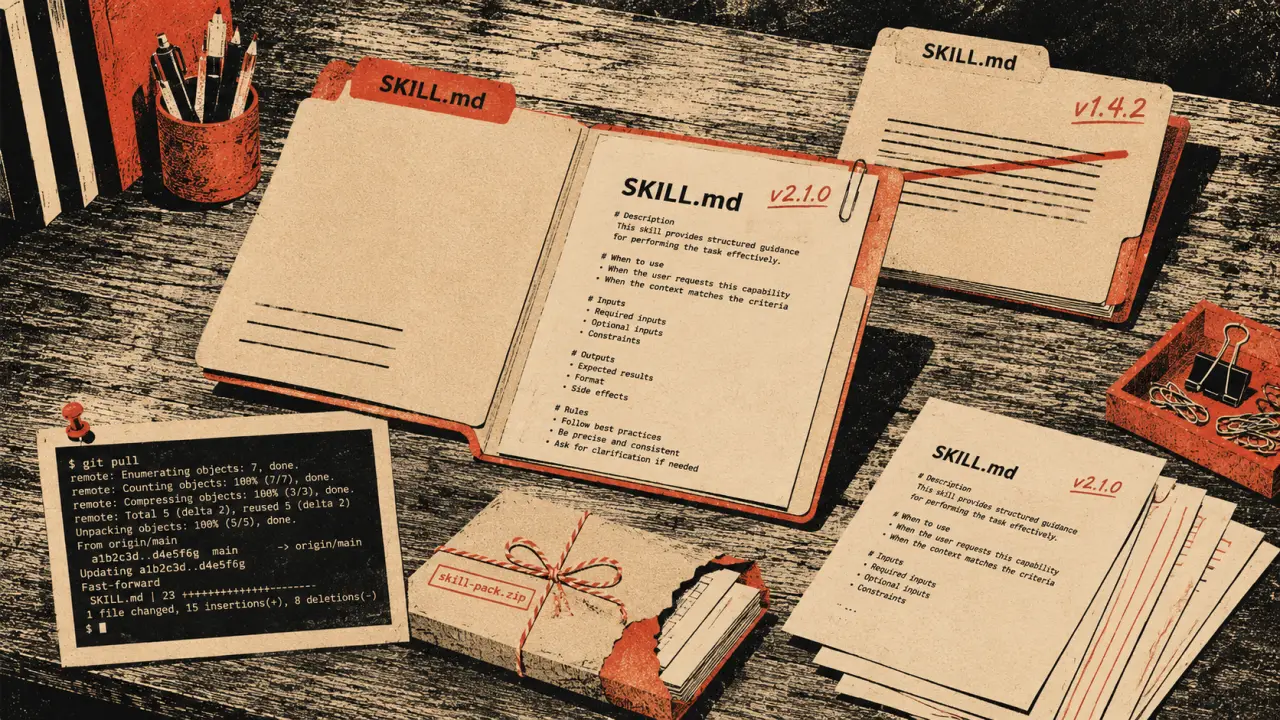
Setting up Claude Code skills on Windows requires a slightly different approach than on macOS or native Linux systems because it runs inside the Windows Subsystem for Linux, or WSL. WSL allows you to run a Linux environment directly on Windows without the overhead of a virtual machine. This means your development environment behaves like Linux, but you need to be aware of certain Windows-specific quirks, especially around file paths and permissions. This guide will walk you through the exact steps to get Claude Code skills up and running smoothly on Windows in 2026. The first step is to ensure you have WSL 2 installed on your Windows machine. WSL 2 is the latest version of the subsystem and offers improved performance and full system call compatibility, which is essential for running Claude Code. To install WSL 2, open PowerShell as an administrator and run the command wsl --install. This command installs the default Linux distribution, which is usually Ubuntu, and sets WSL 2 as the default version. If you already have WSL installed but are unsure if it is version 2, you can check by running wsl -l -v in PowerShell. This command lists all installed Linux distributions along with their WSL version. If your distribution is running WSL 1, you can upgrade it to WSL 2 by running wsl --set-version Ubuntu 2, replacing Ubuntu with your distribution name if different. Once WSL 2 and a Linux distribution like Ubuntu are installed, launch your Linux terminal from the Start menu. You will now be working inside a Linux environment where you can install and manage Claude Code skills just as you would on a native Linux system. However, remember that your Windows file system is accessible under the /mnt directory, for example, your C drive is at /mnt/c. Claude Code skills are stored in your Linux home directory, typically under the path ~/claude_skills or a similar folder you create. This is important because Windows paths like C:/Users/YourName are not directly used inside WSL. Instead, you work within the Linux file system to avoid permission issues and path confusion. Always keep your skill files inside your Linux home directory to ensure smooth operation. To set up Claude Code skills, start by cloning the skills repository or creating your own skill files inside your Linux home directory. For example, you can run git clone https://github.com/claude/claude-skills.git ~/claude_skills to get the official skills repository. This keeps all your skill files organized and accessible to Claude Code running inside WSL. A common pitfall Windows users face is trying to run Claude Code from the Windows file system directly, such as from C:/Users. This can cause permission errors or slow performance due to the way WSL interacts with Windows files. Always work inside the Linux file system, and if you need to access Windows files, copy them into your Linux home directory first. After setting up your skill files, you need to install the necessary dependencies inside WSL. This usually involves installing Python, Node.js, or other runtimes depending on the skill requirements. Use your Linux terminal to run sudo apt update and sudo apt install python3 nodejs npm to get started. Installing dependencies inside WSL ensures compatibility and avoids conflicts with Windows-native software. If you are using Visual Studio Code as your editor, take advantage of the Remote - WSL extension. This allows you to open your Linux files directly in VS Code with full Linux environment support. Open VS Code, press Ctrl+Shift+P, and select Remote-WSL: New Window. Then open your ~/claude_skills folder to edit your skills with seamless integration. When running Claude Code commands or scripts, always do so from within the WSL terminal. For example, if you have a skill script called skill.py, run python3 skill.py inside your Linux terminal. This ensures the environment variables, dependencies, and file paths are correctly resolved. Running these commands from Windows CMD or PowerShell will not work as expected. Networking inside WSL is generally straightforward, but if your Claude Code skills require network access, ensure your Windows firewall or antivirus software is not blocking WSL processes. You can check this by temporarily disabling firewall rules or adding exceptions for WSL. Also, remember that WSL shares the same IP address as your Windows host, so network requests behave as if they originate from your Windows machine. One useful tip is to create symbolic links inside your Linux home directory to frequently accessed Windows folders. For example, ln -s /mnt/c/Users/YourName/Documents ~/windows_docs creates a shortcut to your Windows Documents folder. This allows you to access Windows files easily without leaving the Linux environment, but remember to avoid running Claude Code directly from these mounted drives to prevent permission issues. If you encounter issues with file permissions, such as scripts not being executable, you can fix this by running chmod +x script_name inside WSL. Windows does not support Linux-style permissions natively, so setting executable flags inside WSL is necessary for proper script execution. Always verify permissions when adding new files or cloning repositories. For developers who want to automate their Claude Code skill workflows, consider writing bash scripts inside WSL. These scripts can manage skill updates, run tests, or deploy skills without leaving the Linux environment. You can even schedule these scripts using Windows Task Scheduler by calling wsl -e bash -c 'your_script.sh', bridging Windows automation with Linux tooling. If you need to share your Claude Code skills between Windows and other machines, use Git repositories hosted on platforms like GitHub or GitLab. Commit and push your changes from inside WSL using git commands, and pull updates on other systems. This keeps your workflow consistent and avoids the pitfalls of transferring files manually between Windows and Linux environments. Finally, keep your WSL installation and Linux distribution up to date. Run sudo apt update and sudo apt upgrade regularly to get the latest security patches and software improvements. Also, check for Windows updates that improve WSL performance and compatibility. Staying current ensures your Claude Code skills run reliably and efficiently on Windows. In summary, setting up Claude Code skills on Windows in 2026 revolves around using WSL 2 with a Linux distribution like Ubuntu. Keep your skill files inside the Linux home directory, install dependencies within WSL, and use tools like VS Code Remote - WSL for seamless development. Avoid running scripts directly from Windows file paths, manage permissions carefully, and leverage automation to streamline your workflow. Following these steps will give you a robust Claude Code environment on Windows. With this setup, Windows users can enjoy the full power of Claude Code skills without the typical headaches caused by path differences and permission issues. Whether you are a seasoned developer or just starting, WSL bridges the gap between Windows and Linux, making it easy to develop, test, and deploy Claude Code skills efficiently. Happy coding!
Frequently Asked Questions
Are these prompts free? Yes — all PromptSpace prompts are free to copy and use. Browse our ChatGPT Prompts library for hundreds more.Do these work on the free tier? Most work on free tiers. Complex prompts may perform better on paid versions (ChatGPT Plus, Claude Pro) with larger context windows.
How do I get better AI results? Be specific: include your role, desired format, target audience, and any constraints. More context always improves output.
Can I modify these prompts for my use case? Absolutely — treat every prompt as a starting template. Customize the role, topic, tone, and format to match your needs.