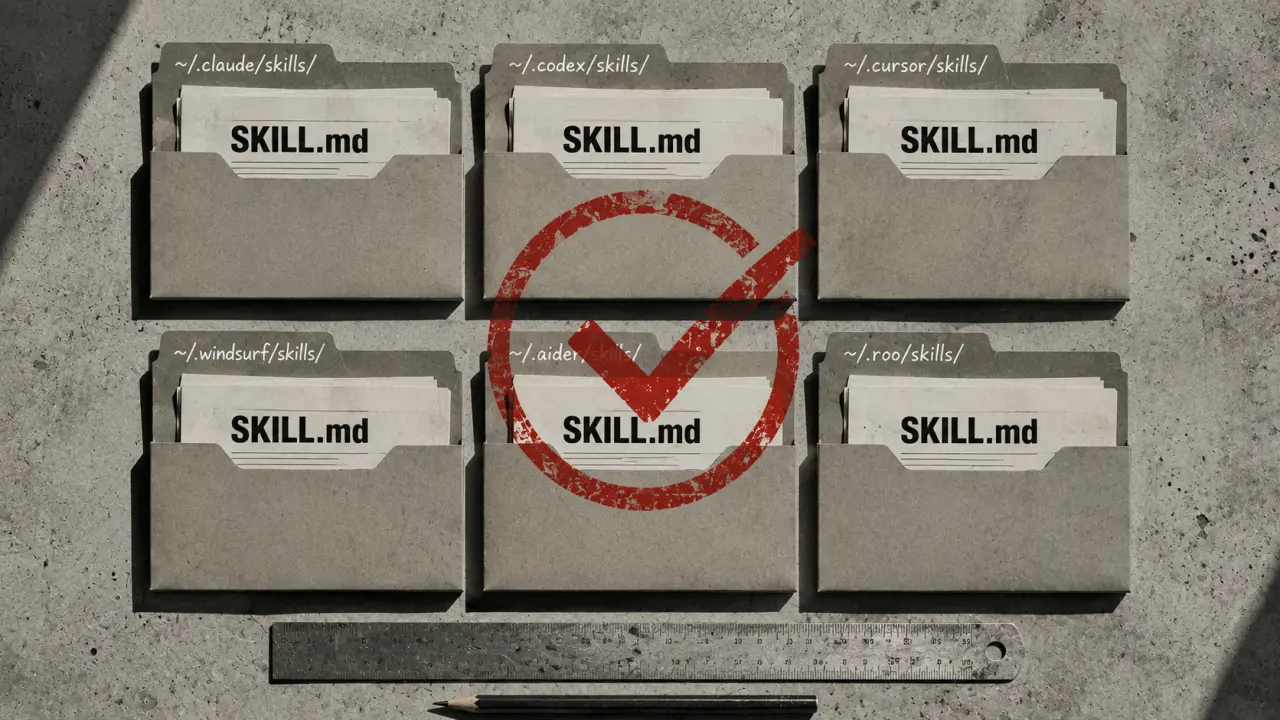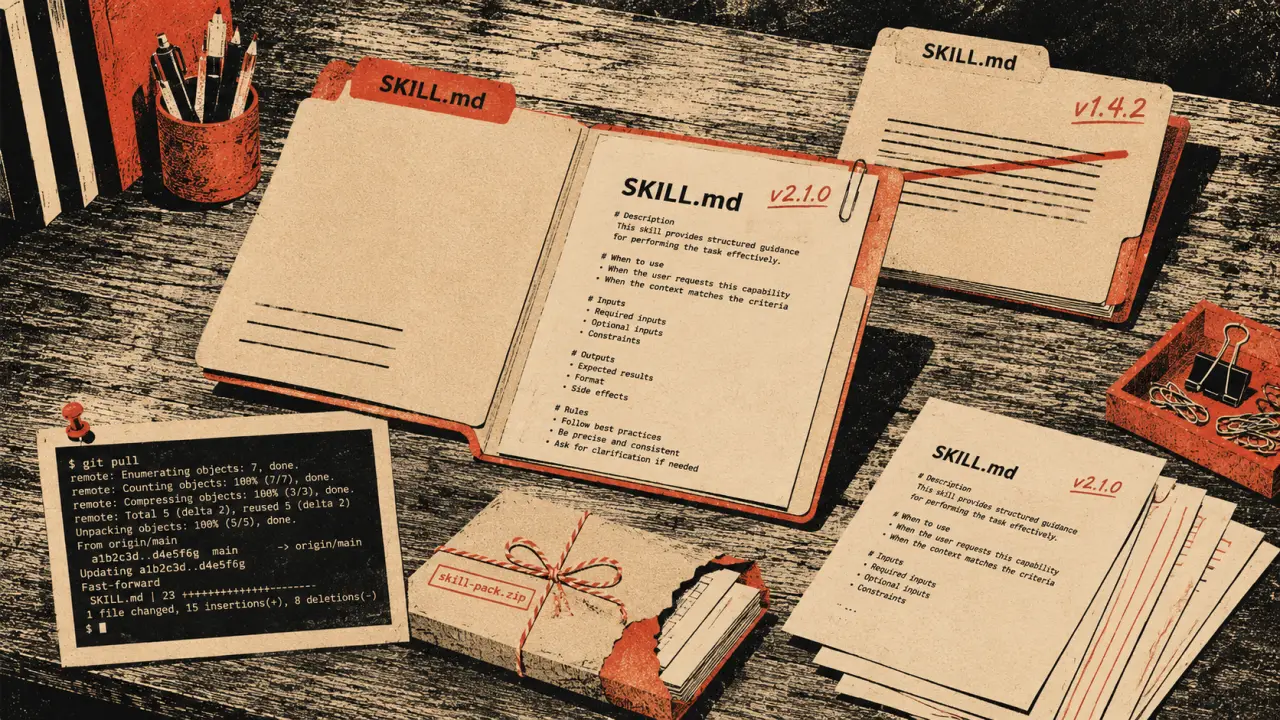
If you've built up a collection of Cursor rules, you don't have to start from scratch to use Claude Code or Codex CLI. Converting Cursor rules to SKILL.md skills is straightforward — the instruction content is usually identical, only the metadata format changes.
What changes
Before diving into the migration, it's important to understand what changes when moving from Cursor rules to SKILL.md skills. Cursor rules are typically stored as flat Markdown files under `.cursor/rules/` with metadata fields like `globs` and `alwaysApply` guiding when the rule applies. SKILL.md, on the other hand, uses a folder structure and more descriptive metadata to enable dynamic, context-aware skill matching by Claude and Codex agents. | Cursor Rule | SKILL.md Skill | |---|---| | `.cursor/rules/rule-name.md` | `~/.claude/skills/skill-name/SKILL.md` | | `globs: ["*.test.ts"]` | `description: "Triggers on testing tasks"` | | `alwaysApply: true` | Managed by description matching | | Flat file | Folder with SKILL.md inside |Step-by-step migration
Follow these steps to convert your Cursor rules into SKILL.md skills with minimal disruption.1. Find your Cursor rules
Locate your Cursor rule files, typically under `.cursor/rules/` in your project directory or home folder. These are Markdown files with frontmatter containing your rule metadata and body containing instructions or prompts.2. Create a new folder for each skill
For each Cursor rule, create a folder named after the skill you want to migrate it to inside the Claude skills directory. For example, if your rule is named `test-helper.md`, create `~/.claude/skills/test-helper/`.3. Copy and rename the rule file
Copy the content of the Cursor rule Markdown file into a new file named `SKILL.md` inside the newly created folder. This is the standard filename Claude and Codex agents look for.4. Convert the frontmatter
Replace the Cursor-specific frontmatter fields like `globs` and `alwaysApply` with SKILL.md compatible metadata. Instead of file globs, write a clear `description` that describes when the skill should be triggered. Add a `name` field as well for easy identification. For example:```yaml --- name: Test Helper
Instead of globs: ["*.test.ts"]
description: "Skills to assist with writing and debugging test files" --- ```This descriptive metadata allows Claude to contextually match the skill to appropriate files or scenarios.
5. Review the instruction content
The body of the rule — your instruction or prompt text — usually remains the same. However, ensure that it is clear and concise, as SKILL.md encourages writing instructions that can be contextually understood by the AI agent.6. Test your migrated skill
Run Claude Code or Codex CLI and test if your new SKILL.md skill triggers correctly. For example, open a test file matching your skill’s description and see if the skill activates or suggests completions.Tips for smooth migration
1. Keep descriptions contextual: Use natural language descriptions that reflect when the skill should apply, rather than relying on technical file globs. 2. Use folders for organization: Group related skills into folders for better management. 3. Validate your SKILL.md formatting: Use a YAML or Markdown linter to ensure your frontmatter is well-formed. 4. Incremental migration: Migrate a few rules at a time and test to avoid breaking workflows. 5. Leverage naming conventions: Use consistent skill names that make it easy to identify their purpose.Real-world use cases
Migrating test file helpers
Suppose you have a Cursor rule that triggers on `*.test.ts` files to help generate mock data or test cases. By migrating this rule into a SKILL.md skill with the description “Skills to assist with writing and debugging test files,” you enable Claude Code to activate this skill whenever you’re working on test files, regardless of the exact file extension or location.Migrating code formatting rules
If you have Cursor rules that enforce specific code formatting or linting instructions, convert them into SKILL.md skills with descriptions like “Helps format JavaScript and TypeScript code according to company style guides.” This makes it easier for agents to apply these skills dynamically when editing relevant files.Migrating documentation helpers
Cursor rules that assist with generating comments or documentation can be migrated to SKILL.md skills described as “Assists with writing code comments and documentation, improving code readability.” This contextual description ensures the skill triggers when helpful, even in mixed-language codebases.Conclusion
Migrating your Cursor rules to SKILL.md skills is a simple but powerful way to future-proof your customizations for Claude Code, Codex CLI, and other agents supporting the SKILL.md standard. By following these steps and tips, you can maintain your productivity and enjoy more dynamic, context-aware AI assistance without starting from scratch.Frequently Asked Questions
What AI tools do developers use most in 2026? Claude Code, GitHub Copilot, and Cursor AI dominate developer workflows. See our Developer Prompts collection.Are AI coding tools worth it? Yes — developers consistently report 20–40% productivity gains on repetitive tasks. Most subscriptions pay for themselves within the first week.
Copilot vs Cursor — which is better? Cursor handles complex multi-file edits better. Copilot integrates into more editors. Most developers who try Cursor prefer it for complex projects.
Is AI-generated code production-ready? AI produces solid starting points, not final code. Always review, test, and refine AI-generated code before deploying to production.