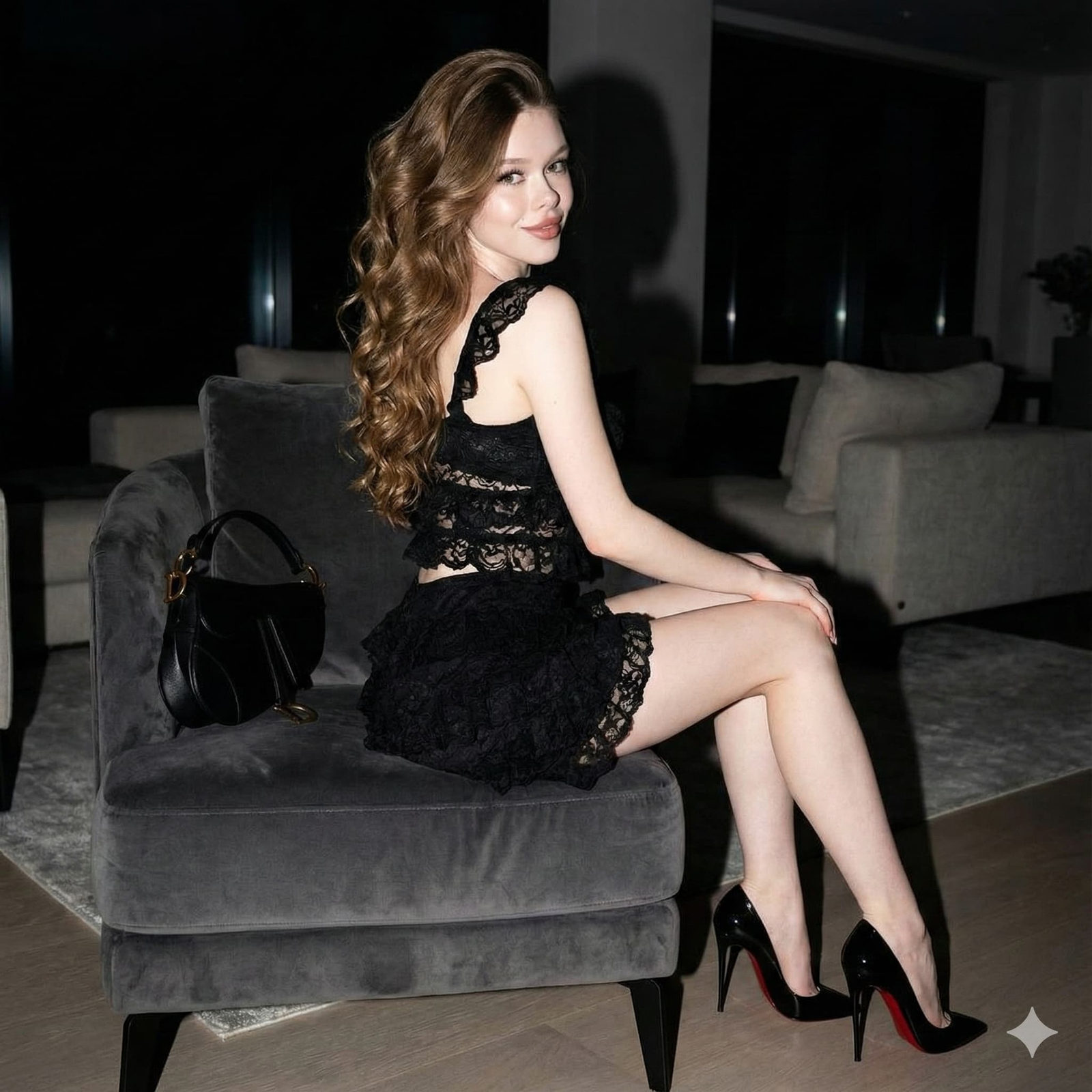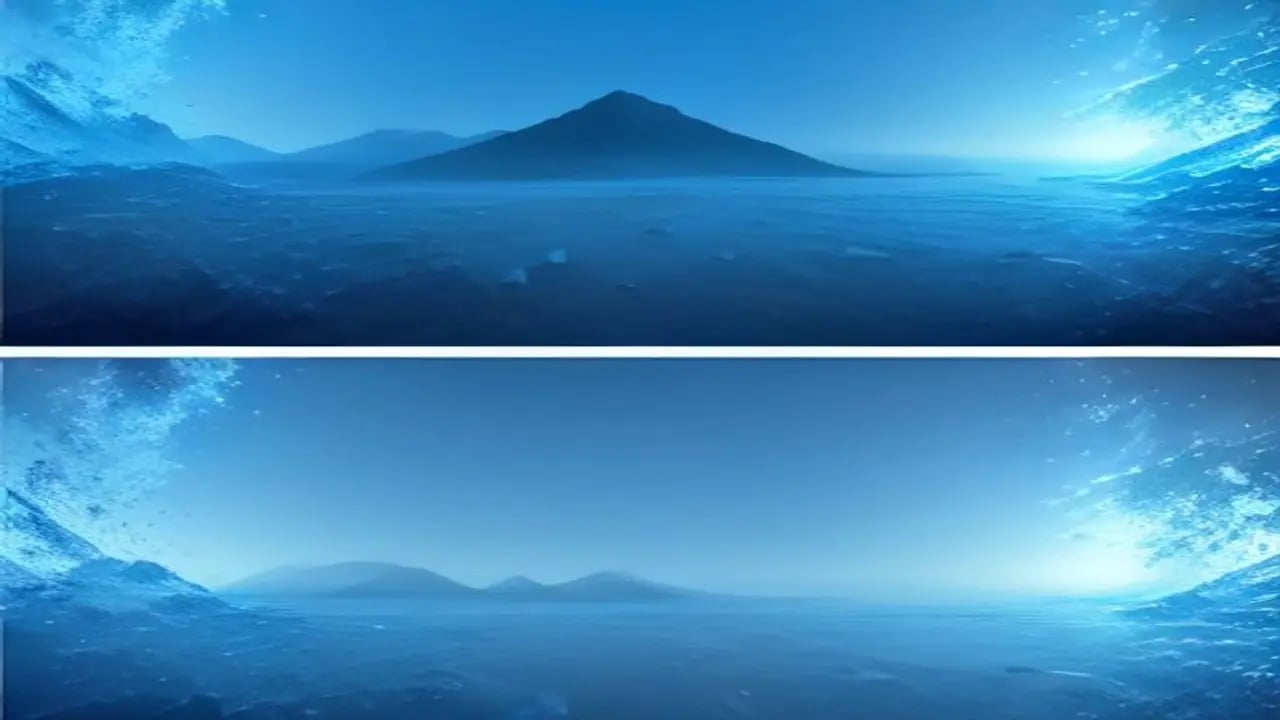
Every AI image generator ships images at roughly 1024×1024 pixels. That's it. FLUX, Midjourney, Stable Diffusion, DALL-E — they all output at a base resolution nowhere near what a 4K monitor or a photo print requires. So most creators do one of two wrong things: force the model to generate at higher resolution (quality drops sharply) or use Photoshop's default resize (mushy edges everywhere). The right move is a dedicated AI upscaler as a separate workflow step. This guide covers exactly how to do that in 2026.
Complete guide to upscaling AI images to true 4K (3840×2160) and 8K (7680×4320) — which upscaler for which use case, workflow for FLUX / Midjourney / Stable Diffusion output, and honest limits of the technology. Author: PromptSpace.
Why Every AI Image Needs Upscaling
AI image models in 2026 produce base output at roughly these resolutions:
| Model | Native Output | Max Native | 4K Ready? |
|---|---|---|---|
| FLUX 1.1 Pro | 1024×1024 | 2048×2048 | No, needs 2x |
| Midjourney v7 | 1024×1024 | 2048×2048 with upscale | Marginal, needs 2x |
| Stable Diffusion XL | 1024×1024 | 1024×1024 | No, needs 4x |
| DALL-E 3 | 1024×1792 | 1792×1024 | No, needs 2x |
| FLUX Schnell (free) | 1024×1024 | 1024×1024 | No, needs 4x |
4K is 3840×2160 pixels. 8K is 7680×4320. None of these models output at those resolutions natively. To ship a print-quality photograph, a proper 4K wallpaper, or an art poster that isn't visibly soft — you need an upscaling step.
The Correct AI Image Workflow
- Generate at native resolution. Do not force a model to output larger than native. Quality drops, artifacts appear.
- Iterate at native. Generate 8–10 variants at ~1024px. Pick your favorite.
- Upscale the winner. Run through a dedicated AI upscaler at 2x or 4x depending on target resolution.
- Inspect at 100%. Zoom to full resolution and check for artifacts. If issues appear, regenerate from the source or try a different upscaler.
- Compress smartly. Save as PNG for lossless quality (large file). Save as WebP quality 90 for web use (smaller file, near-lossless). Save as JPEG quality 85 for social sharing.
Pro Tip: The single most under-used step in AI image workflows is zoomed inspection. Zoom to 100% (actual pixels) after upscaling and scroll around the image. Look at eyes, hair, text areas, and fine texture. If those look good at 100%, your image is print-ready. If they look mushy, your upscaler is wrong for this image — try a different one. Never ship an upscaled image without this check.
Upscaler Comparison: Which One for Which Job
| Upscaler | Best For | Free Tier | Speed | Max |
|---|---|---|---|---|
| PromptSpace AI Upscaler | All AI-generated images, general photography | Yes, unlimited | 15s | 4x |
| Real-ESRGAN | Anime, illustration, cartoon | Yes, self-hosted | 30s | 4x |
| Topaz Gigapixel AI | Photorealistic, complex textures | Trial only | 10s | 6x |
| Upscayl | Cross-platform, offline | Yes, open source | 60s | 4x |
| ChatGPT built-in | Quick web preview quality | Yes with Plus | 10s | 2x |
| Photoshop Preserve Details 2.0 | Emergency only, poor for AI | No | 3s | Any |
Target Resolutions by Use Case
Match your upscaling target to your actual use case. Over-upscaling wastes time and produces larger files with no visible benefit.
- Social media (Instagram, X): 1080×1080 (Instagram square) or 1080×1350 (Instagram portrait). NO upscaling needed from native AI output.
- Full HD web (1080p display): 1920×1080. 2x upscale from 1024×1024 covers it.
- 4K desktop wallpaper: 3840×2160. 4x upscale required.
- 4K TV display: 3840×2160. 4x upscale required.
- Retina MacBook (2880×1800): 3x upscale sufficient.
- iPad Pro (2732×2048): 3x upscale sufficient.
- 4K mobile portrait wallpaper: 1440×3200. 3x upscale after generating at 9:20 aspect.
- Photo print 8×10 inch: 2400×3000 at 300 DPI. 3x upscale required.
- Photo print 16×24 inch: 4800×7200 at 300 DPI. 4x upscale (or 6x with Topaz).
- Poster print 24×36 inch: 7200×10800 at 300 DPI. 4x + resize or dedicated 8K upscale required.
- 8K display / cinema: 7680×4320. 4x upscale minimum, sometimes chained 2x + 4x.
Different Content Needs Different Upscalers
Photorealistic AI Photos
Use a general-purpose photographic upscaler. PromptSpace's AI image upscaler is calibrated for photorealistic content — skin, fur, feathers, water, sky all upscale cleanly. Topaz Gigapixel is another strong option if you have a paid license. Avoid anime-optimized upscalers on photos — they can over-smooth skin and produce painterly artifacts.
Anime, Illustration, Cartoon
Real-ESRGAN anime model or Waifu2x-style upscalers handle line art much better than photo-focused upscalers. They preserve hard edges and flat color regions. Do NOT use photorealistic upscalers on anime — they will hallucinate texture that shouldn't be there.
Product / E-commerce
Product images with clean backgrounds and sharp geometric edges benefit from photographic upscalers with edge preservation. Topaz Gigapixel's "Standard" model or PromptSpace's upscaler both handle this well. Test both on a single product image before committing to a workflow.
Landscapes with Fine Detail
Landscape photos with grass, foliage, water texture need upscalers that don't over-smooth. General photographic AI upscalers handle this well. Avoid anything labeled "AI clarity boost" — these tend to over-sharpen edges and produce false detail in high-frequency areas.
Portraits with Skin Detail
Portraits are the hardest upscaling case. Skin needs to remain smooth without going plastic, hair needs individual strand detail without becoming stringy, eyes need catch-lights preserved. Test multiple upscalers on a single portrait first. PromptSpace's upscaler and Topaz "Standard v2" both handle this well; Real-ESRGAN can produce plasticky skin on portraits.
Handling Text in AI Images
AI image generators still produce garbled text in 2026. If your image has attempted text, upscaling amplifies the badness. Two options:
- Regenerate without text. Ask the AI for an image with placeholder text areas ("empty space for text placement"). Add real text in Canva or Photopea after upscaling.
- Crop the text area. If AI text is small and non-central, upscale then crop it out.
Never assume the upscaler will "fix" AI text. It will not. Text becomes cleaner-looking gibberish.
When NOT to Upscale
- Social media web display. Instagram and X compress everything anyway. Native 1024×1024 with maybe 1.5x upscale is more than sufficient. Uploading 4K images to Instagram just wastes your bandwidth.
- Draft iteration. When you're still iterating on prompts, don't upscale. Wait until you have the final version.
- Video reference frames. If you're going to feed an image into an AI video generator, native resolution is fine. The video model outputs at video resolution regardless of input.
- Images with major AI artifacts. Upscaling amplifies problems. Six fingers, warped faces, physics violations — these get worse when upscaled. Fix them at the source.
Common Upscaling Mistakes
- Upscaling before iterating. Do not upscale every generation. Iterate at native resolution, upscale only the winner.
- Chaining upscalers. "4x then 2x more" produces artifacts. Do one upscaling pass with the correct target factor.
- Using photo upscalers on illustration. Real-ESRGAN anime for anime, PromptSpace or Topaz for photo. Do not cross the streams.
- Not checking at 100% zoom. Preview thumbnails hide artifacts. Always inspect full-size before shipping.
- Saving as JPEG at low quality. An 8K image at JPEG quality 60 is worse than a 4K image at quality 90. Match compression to display purpose.
Complete Workflow: From Prompt to Print
- Prompt design. Use one of our tested prompt guides: realistic photos, cinematic, 4K wallpapers.
- Generate. Use PromptSpace's free AI image generator or FLUX/Midjourney. Generate 8–10 variants.
- Curate. Pick the top 1–2 without visible AI artifacts (six fingers, warped anatomy, physics violations).
- Upscale. Run winner through PromptSpace's AI image upscaler at 2x or 4x depending on target.
- Inspect. Zoom to 100%. Verify eyes, faces, hair, text areas, texture.
- Fix if needed. If artifacts, either regenerate source or try a different upscaler.
- Compress and ship. Save at correct format for your target platform.
A Note on Video Upscaling
Video upscaling is fundamentally harder than image upscaling because you need temporal consistency across frames. AI-generated video from PromptSpace's video generator, Runway, or Kling ships at 720p or 1080p. Upscaling to 4K video requires dedicated tools (Topaz Video AI, Winxvideo) — image upscalers do not work on video frames because they produce different results on each frame, creating flickering. Video upscaling is a separate workflow, not covered in this guide.
What Upscaling Won't Fix
- Anatomical errors. Six fingers stay six fingers. Extra limbs stay extra limbs. Fix at source, not with upscaling.
- Wrong composition. A badly framed image at 4K is still badly framed. Solve at prompt stage.
- Missing detail that was never generated. If your source has soft grass texture, upscaling won't hallucinate individual blades. Only real generative upscaling adds detail — most upscalers preserve rather than create.
- Wrong color palette. Upscalers preserve color. Grade colors in a separate step after upscaling if you need adjustment.
Frequently Asked Questions
Which is the best free AI image upscaler in 2026?
PromptSpace's free AI image upscaler handles most use cases without a signup — up to 4x upscaling for AI-generated photorealistic content. Upscayl is a good open-source alternative if you want offline / self-hosted. Real-ESRGAN anime model is best for illustration/anime. Skip Photoshop's built-in upscaling for AI content — it's calibrated for photography and produces mushy AI output.
Can I upscale AI images to 8K?
Yes, but with limits. Starting from 1024×1024 native, you need 8x upscaling to reach 8K (7680 wide). Most upscalers max out at 4x per pass. Options: (1) use Topaz Gigapixel which supports 6x, (2) chain 4x + 2x if artifacts are acceptable, (3) generate the source at higher native resolution first. 8K upscales work best on architectural, landscape, and pattern-heavy content — human faces and organic subjects tend to develop artifacts at 8x.
Should I upscale before or after editing in Photoshop?
Depends. For color grading and minor cleanup: upscale first, then edit at high resolution. For heavy compositing and masking: edit at native resolution (faster), then upscale the composite. For text overlay: upscale image first, add text at target resolution to avoid rescaling text later.
Does upscaling degrade AI images?
Modern AI upscalers (2024+) improve rather than degrade — they add plausible detail. Old-school algorithmic upscaling (bicubic, Lanczos) blurs and adds no detail. Always use a modern AI upscaler for AI content. Traditional resize methods in Photoshop and image viewers are calibrated for photography and produce noticeably softer results on AI images.
Why does my upscaled image look worse than the original?
Three common causes. (1) Wrong upscaler for content type — anime upscaler on photo, photo upscaler on illustration. (2) Source image already had artifacts that got amplified. (3) Chained upscaling passes creating cumulative artifacts. Solution: try a different upscaler, regenerate the source, and always do one single-pass upscale rather than multiple passes.
Is AI upscaling considered fair use?
Complex legal question. Upscaling your own AI-generated images is fine. Upscaling copyrighted photographs (someone else's photos) is a legal grey area — technically transformative but rarely enough to constitute fair use for commercial purposes. Never upscale copyrighted photos and sell them. Never claim you took a photograph that was originally AI-generated and upscaled.
What resolution should I generate at if I know I'll upscale?
Native model resolution — do not try to force higher generation. FLUX and Midjourney native at ~1024–1536 pixels. Generate at this, then upscale. Trying to force 2K or 3K native generation produces lower-quality output that upscales worse than a clean 1024 source. The rule: iterate low, ship high.
Can I use AI upscalers on old family photos?
Yes. AI upscalers work on any digital image, including old photographs and scans. For old family photos specifically, use a specialized "restoration" model rather than a general upscaler — GFPGAN or CodeFormer are designed for old-photo face restoration and produce meaningfully better results than pure upscaling. For non-face content, PromptSpace's upscaler works well on scanned photos.
Ship Your First Upscaled AI Print This Week
- Free AI Image Upscaler — 4x upscaling in your browser, no signup.
- Free AI Image Generator — iterate at native resolution before upscaling.
- AI image gallery — browse community-generated images and their upscaled versions.
- Best AI prompts for realistic photos — start with strong source images.
- AI 4K Wallpaper Prompts — wallpapers designed with upscaling in mind.
- Cinematic AI Prompts — film-grade output ready for 4K upscaling.
Take one of your favorite AI generations. Upscale it to 4K. Zoom to 100% and inspect. That's a print-ready image shipped in under 5 minutes.