Adobe Photoshop costs $54.99 a month. If you're a working photographer billing clients thousands per project, that's a rounding error. For everyone else — the food blogger touching up a flat lay, the small business owner resizing product photos, the Instagram creator removing a cluttered background — it's genuinely hard to justify.
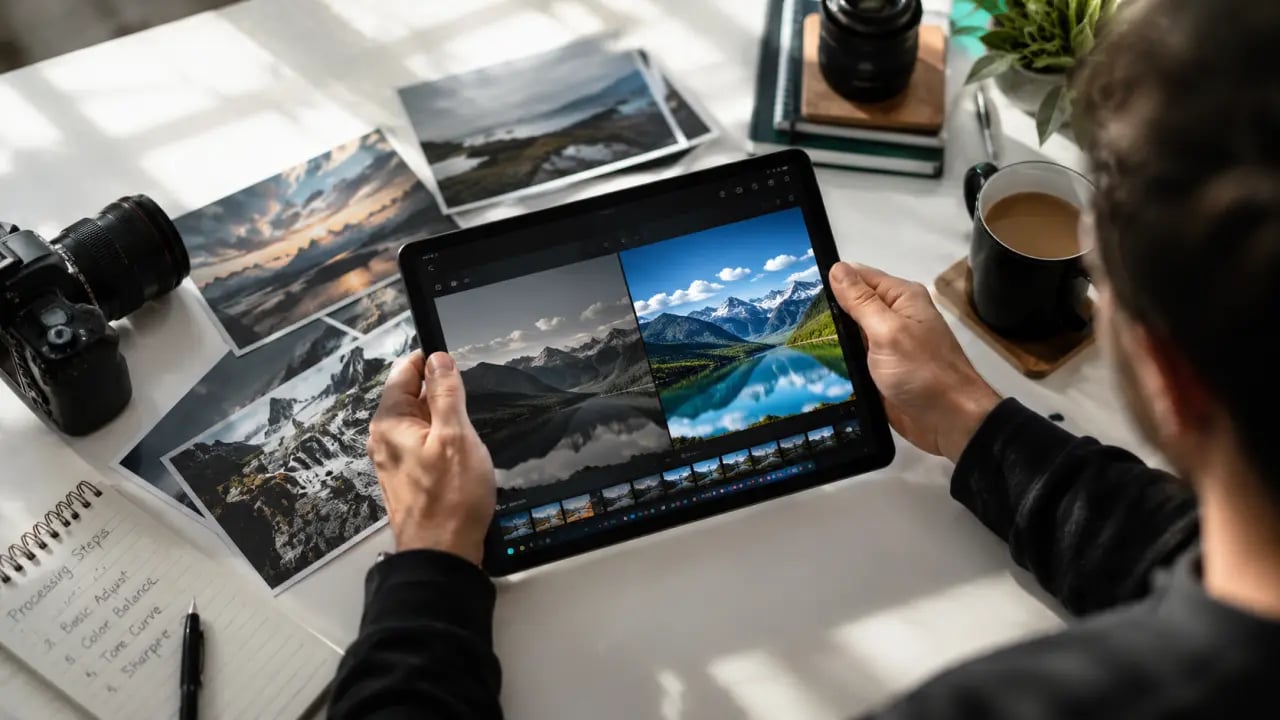
The good news: AI photo editing tools have caught up fast. A task that used to require 20 minutes of careful masking in Photoshop now takes about 8 seconds with the right free tool. Background removal, noise reduction, upscaling, object cleanup — all of it is now available at no cost, with meaningful quality results.
The bad news: there are dozens of these tools, most of them mediocre, and the "free" tier often vanishes the moment you need it most. This guide cuts through that noise. We tested six of the best free AI photo editing tools available in 2026, noted exactly what's free and what isn't, and matched each tool to the tasks it actually handles well.
Table of Contents
What AI Photo Editing Actually Means
Before recommending tools, it helps to separate two things that get conflated constantly: AI photo editing and AI image generation.
AI photo editing starts with a photo you already have. The AI analyzes the existing pixels and modifies them — sharpening details, removing objects, replacing backgrounds, or scaling the image up without blurring. The source material is yours; the AI is doing surgical work on it.
AI image generation creates something from scratch based on a text prompt. You type "a golden retriever in a mountain meadow at sunset" and the model renders it from nothing. Tools like Stable Diffusion and Midjourney live here. (If that's what you're after, check out the PromptSpace AI Image Generator — it's free to try.)
Most people need editing tools, not generation tools. This guide focuses entirely on the former: tools that take your existing photos and make them better, faster, or more usable.
The 6 Best Free AI Photo Editing Tools in 2026
1. PromptSpace AI Upscaler — Best for Upscaling and Detail Recovery
If you've ever exported a photo at the wrong resolution, cropped too aggressively, or received a low-res product image from a supplier, you know the problem: once the pixels are gone, they're gone. Or they used to be.
The PromptSpace AI Upscaler uses a Real-ESRGAN-based model to reconstruct lost detail when scaling an image up — not just stretching pixels, but actually hallucinating plausible detail based on surrounding context. The difference between traditional bicubic upscaling and this approach is visible immediately, especially in faces, fabric textures, and fine text.
What it does: Upscale images 2x or 4x with AI-enhanced detail. Works on portraits, product photos, landscapes, and screenshots. No account required to try it.
Free tier: Free to use with no watermark on standard resolution outputs. No export limits per session.
Best use case: Recovering a usable high-res version of an old photo, scaling up product images for print, or making a blurry screenshot sharp enough to actually read.
Honest limitations: The AI adds detail by inference, not by magic. If the source image is extremely degraded or compressed with heavy JPEG artifacts, the output will look "AI-sharpened" rather than naturally crisp — you'll notice hallucinated texture that wasn't in the original. Upscaling works best when the input has some real content to work from.
For more AI-processed imagery to work with, the PromptSpace Images library is worth exploring as a resource.
2. Adobe Express — Best All-in-One Free Editor
Adobe could have charged for everything and people would have paid. Instead, they built a genuinely capable free tier into Adobe Express that includes several AI features that used to be Photoshop-only.
What it does: Adobe Express is a web-based editor with templates, design tools, and AI features including background removal (Generative Remove), object eraser, and a basic Generative Fill that can replace selected areas with AI-generated content. The interface is considerably simpler than Photoshop, which is either a feature or a limitation depending on your needs.
Free tier: The free plan includes background removal, basic generative AI tools, access to thousands of templates, and a mobile app. You get 5 GB of storage. The main limitations are a watermark on some premium template exports and a credit limit on generative AI features (25 generative credits per month on the free tier as of 2026).
Best use case: Small business owners who need to produce polished social media graphics, product listings, or presentations regularly without a design background. The combination of templates and AI tools covers 80% of common use cases.
Honest limitations: The generative fill quality is noticeably behind Photoshop's. For complex inpainting tasks — removing a person from a crowded background, for example — results can be inconsistent and sometimes require multiple attempts. The 25 monthly generative credits disappear faster than expected if you're using it daily.
3. Canva AI — Best for Social Media Creators
Canva has been the go-to design tool for non-designers for years. Their AI additions in 2024 and 2025 made it considerably more powerful for photo editing specifically, not just graphic design.
What it does: Canva's free plan includes background remover (limited), Magic Edit (select an area, describe what you want, AI fills it), Magic Eraser (remove objects), and AI-powered resize that adapts content layout automatically. The Magic Edit feature is genuinely impressive for straightforward replacements.
Free tier: Background remover is available on the free plan for up to a certain number of uses. Magic Edit, Magic Eraser, and other "Magic" AI tools are technically part of Canva Pro ($15/month), but Canva grants free users a limited number of trial uses each month — enough to test the tools and handle occasional one-off tasks.
Best use case: Instagram creators and social media managers who need to go from raw photo to finished, on-brand post quickly. The combination of editing tools and design canvas in one place is unmatched at this price point.
Honest limitations: Canva's AI editing tools are optimized for design output, not photographic precision. Fine-detail editing — correcting skin tones, fixing subtle lighting inconsistencies — isn't where this tool shines. And the free tier's credit system is opaque; you often don't know how many uses you have left until you run out mid-project.
4. Remove.bg — Best Single-Purpose Background Removal
Remove.bg does one thing. It does that one thing better than almost anything else, and it's mostly free.
What it does: Upload a photo, get back a PNG with the background removed. The AI handles complex edges — hair, fur, transparent objects, hands with spread fingers — with accuracy that was genuinely difficult to achieve manually even two years ago. Processing takes about 5 seconds.
Free tier: Free users get the full-resolution preview and can download images at reduced resolution (up to 0.25 megapixels) without any account. For full-resolution downloads, you need to buy credits or subscribe. One free full-res download is available per user on signup.
Best use case: E-commerce product photos. If you're listing products on Shopify, Etsy, or Amazon, most platforms require or prefer white or transparent backgrounds. Remove.bg handles this at a fraction of the time manual masking requires. Also excellent for headshots and profile pictures.
Honest limitations: The reduced-resolution free output is often too small for professional use. At 0.25 megapixels, a typical product photo comes out around 500 x 500 pixels — fine for some web use, limiting for print or large displays. If you're processing volume, the credit cost adds up quickly. Also, the tool occasionally struggles with backgrounds that are similar in color to the subject.
5. Luminar Neo — Best for Photography-Specific AI Enhancement
Luminar Neo is a paid desktop application, but its free trial is genuinely useful and worth including here. Unlike tools with trials that cripple functionality or expire immediately, Luminar Neo gives you meaningful access upfront.
What it does: Luminar Neo is built specifically for photographers who want AI-driven enhancements that go beyond sliders. Its standout tools include Sky AI (replace the sky with realistic blending and lighting adjustment), Portrait AI (skin retouching, eye enhancement, body adjustment), Relight AI (adjust the apparent light source in a scene after the fact), and Enhance AI (overall intelligent sharpening and local contrast). These are all genuinely useful and often produce results that would take much longer to achieve manually.
Free tier: 7-day free trial with full access to all features. No credit card required. After the trial, you either buy ($79 one-time or $9.95/month) or stop using it.
Best use case: Photographers who need professional-grade retouching and creative edits for a one-time batch of photos — a wedding, a headshot session, a product shoot. Seven days is enough time to process a lot of images and export the results.
Honest limitations: It's a trial, not a permanent free option. The application is fairly resource-heavy and runs noticeably slower on older hardware. Portrait AI's "body adjustment" features remain ethically questionable and should be used with client awareness. Sky replacement, while impressive, produces clearly synthetic results in professional-critical contexts if you look closely.
6. Clipdrop by Stability AI — Best Free Toolkit for Multiple Tasks
Stability AI — the company behind Stable Diffusion — built Clipdrop as a practical set of AI photo tools, not a showcase for generation. The result is a collection of genuinely useful utilities at no cost.
What it does: Clipdrop includes background removal, cleanup tool (remove objects with inpainting), image upscaler, relight tool (add or shift lighting sources in a photo), uncrop (extend the canvas and AI-fill the new area), and a swap background feature. Each tool is a separate module; the experience is more like a toolbox than an integrated editor.
Free tier: Most tools are free with usage limits. The cleanup and background removal tools allow a set number of uses per day. The upscaler and relight tools are free with output resolution caps. Importantly, no watermarks on output at free tier as of 2026.
Best use case: Creators who need a range of different AI editing tasks done occasionally and don't want to pay for five separate subscriptions. The relight tool specifically is rare at any price — the ability to change where light appears to come from in a finished photo opens up real creative flexibility.
Honest limitations: Clipdrop's cleanup tool produces mixed results compared to Photoshop's Generative Fill — it works cleanly on simple backgrounds but struggles with complex scenes or large objects. Daily usage caps can be hit quickly in a productive editing session, and Stability AI's product roadmap has been somewhat unpredictable, so feature availability may shift.
Quick Pick: Match Your Task to the Right Tool
| If you want to... | Best Free Tool | Backup Option |
|---|---|---|
| Upscale a low-res image | PromptSpace AI Upscaler | Clipdrop Upscaler |
| Remove a background fast | Remove.bg | Canva AI (free credits) |
| Create social media graphics | Canva AI | Adobe Express |
| Retouch a portrait | Luminar Neo (trial) | Adobe Express |
| Remove an unwanted object | Clipdrop Cleanup | Adobe Express Generative Remove |
| Fix lighting in a photo | Clipdrop Relight | Luminar Neo Relight AI (trial) |
| Resize for multiple platforms | Canva AI | Adobe Express |
| Replace a sky | Luminar Neo (trial) | Adobe Express |
| Extend/expand a photo's canvas | Clipdrop Uncrop | Adobe Express |